
Timeline (Gantt) View
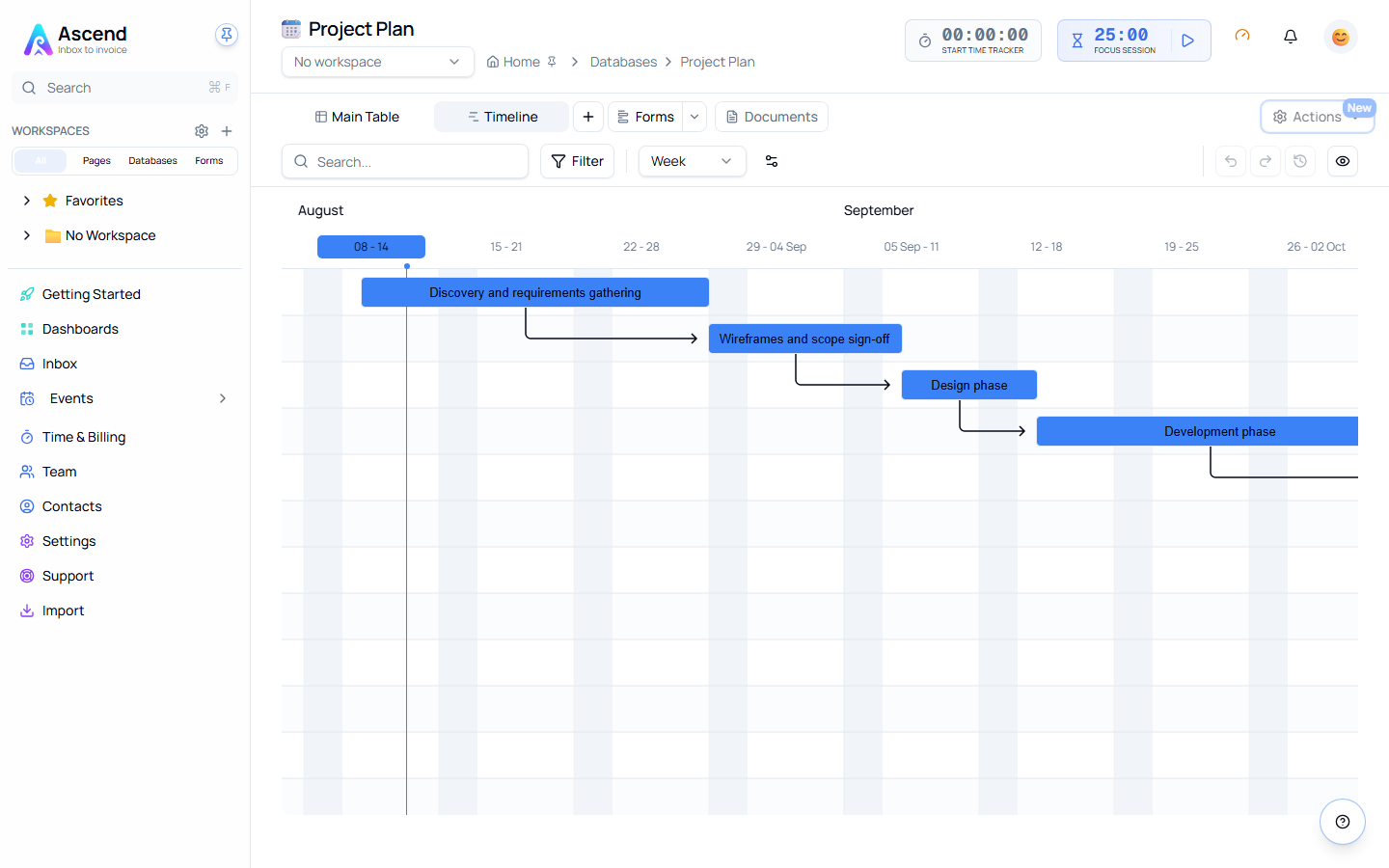
The Timeline view plots your database rows as horizontal bars on a time axis, with arrows showing which tasks depend on which. Use it for project plans, client delivery schedules, and any work where the order and overlap of tasks matters as much as their dates.
Move a bar and everything that depends on it moves with it.
Creating a Timeline View
- Click the + next to the view tabs
- Select Timeline
- In the setup dialog, choose:
- Start date — required; positions the left edge of each bar
- End date — optional; without it every row renders as a one-day bar
- Depends on — optional; the relation property that draws dependency arrows
- Colour by — optional; a select or status property that colours the bars
- Hide weekends — optional
- Click Save
Only the start date is required. You can change any of it later from the settings (gear) icon in the view toolbar.
If your database has no date property, add one first — the Timeline can't render without one.
Setting Up Dependencies
Dependency arrows need a relation property that points at the same database — each row lists the rows that must finish before it starts.
- Add a Relation property
- Point it at this same database
- Select it as Depends on in the Timeline settings
- On each row, set the task or tasks it follows
The two Gantt templates (below) come with this already configured.
Layout
| Element | Description |
|---|---|
| Bars | One per row, spanning its start to end date |
| Dependency arrows | Drawn from each task to the tasks that depend on it |
| Today marker | Vertical line at the current date; the chart opens scrolled to today |
| Header | Sticky month and week labels that stay visible while you scroll |
| Zoom | Day, Week, Month or Year, selected from the toolbar |
Rescheduling
| Action | How | What happens |
|---|---|---|
| Move a task | Drag the bar left or right | The task moves, and every task that depends on it shifts by the same amount, keeping the gaps intact |
| Change duration | Drag the bar's right edge | The end date changes, and dependent tasks shift to follow |
| Change the start only | Drag the bar's left edge | Only the start date moves; nothing cascades, because dependents follow the end date |
| Open a task | Click the bar | Opens the row detail panel |
| Undo | Ctrl + Z (or the toolbar Undo) | Reverses the whole move — the task and every task that shifted with it — in one step |
A drag saves once, when you let go. Pausing mid-drag to line a bar up precisely won't split it into two separate changes.
Zoom Levels
| Zoom | Dragging |
|---|---|
| Day | Yes |
| Week | Yes |
| Month | No — view only |
| Year | No — view only |
Dragging is deliberately disabled at Month and Year zoom, where a single pixel covers too much time to reschedule accurately. Switch to Day or Week to make changes; the view tells you so when dragging is off. Clicking a bar to open its row still works at every zoom level.
Your zoom choice is saved with the view.
Templates
Two ready-made Gantt databases are available under Choose Template:
| Template | Contents |
|---|---|
| Project Plan | Discovery, wireframes, design, development, QA and launch, chained in order |
| Client Onboarding | Contract, asset collection, workspace setup, discovery call and handover |
Both arrive with the date properties, the dependency relation and the Timeline view already set up, plus sample tasks you can edit or delete.
Filtering and Sorting
Filters and search work the same as in Table view — only matching rows appear as bars.
One thing to know: the Timeline can only reschedule what it can see. If a filter hides a dependent task, moving its predecessor won't move it, and you won't be told. Clear your filters before a large reschedule if you need every dependent to follow.
Limits
| Limit | Detail |
|---|---|
| 200 bars | Only the first 200 matching rows are drawn. A banner tells you when rows are hidden — narrow your filters to see the rest |
| 25 tasks per move | A single drag shifts at most 25 tasks. If a longer chain is affected, the nearest tasks move and a message tells you the rest didn't |
Sharing
Timeline views work on share links and embeds, following the access level you set:
| Access | Behaviour |
|---|---|
| View | Bars and arrows render; nothing can be dragged |
| Edit | Rescheduling works and saves, exactly as in the app |
Best Practices
| Do | Avoid |
|---|---|
| Give every task a start date — rows without one don't appear | Leaving dates blank and wondering where the bar went |
| Set an end date so bars show real duration | Relying on one-day bars for multi-week work |
| Reschedule at Day or Week zoom | Trying to drag at Month or Year zoom |
| Clear filters before a big reschedule | Moving a predecessor while its dependents are filtered out |
Troubleshooting
| Problem | Solution |
|---|---|
| A row has no bar | It has no start date, or its date can't be read. Rows without a start date are skipped |
| No dependency arrows | No Depends on property is configured, or the relation doesn't point at this same database |
| An arrow is missing | The task it points to is hidden by a filter or beyond the 200-bar limit |
| Bars won't drag | You're at Month or Year zoom, or you have view-only access |
| The setup dialog keeps opening | No start date property has been chosen yet — pick one and save |
| Fewer tasks moved than expected | A single move is capped at 25 tasks; filtered-out dependents are never moved |
Status shows as raw text like not_started | The stored value doesn't match one of the property's options. Re-pick it from the dropdown |
Related
- Views, Filters & Sorting
- Property Types — Date and Relation property configuration
- Templates
- Calendar View
- Advanced Features — Relations and rollups