
Using Booking
Share a public link, let people pick a time, and the booking lands in your calendar with reminders and follow-ups already wired up. No back-and-forth email, no double-bookings.
1Booking
Start here
The basics, in the order most people need them.
2Booking
Going further
The rest of what this area can do.
AvailabilityTell Ascend when you're bookable.Multi-Host & PoolsFor event types where more than one person can run the meeting — collective panels, round-robin sales calls…Custom QuestionsAsk the booker for extra information at confirm time — phone number, project size, what they want to discuss.Branding & ThemingMake the public booking page feel like yours.Workflows & RemindersAutomate what happens around bookings — confirmation emails, day-before SMS reminders, follow-up nudges, webhook…PaymentsCharge for bookings via Stripe Checkout.Publishing & SharingTake an event type from draft to live, and get the link in front of the right people.Managing BookingsOnce people start booking, you'll want to see them in one place, move them around, and handle no-shows.AnalyticsSidebar → Booking → View analytics (or visit /booking/analytics).Calendar IntegrationsConnect Google or Microsoft Calendar so Ascend can hide slots that conflict with your other meetings — and write…
3Booking
When something looks wrong
Known causes and how to fix them.
Inbox to invoice. Slot to booking.
A booking event type is just a friendly face on your real calendar availability. Every confirmed booking respects your buffers, your minimum notice, and your other meetings — and writes the meeting back to Google or Outlook automatically.
Quick Start
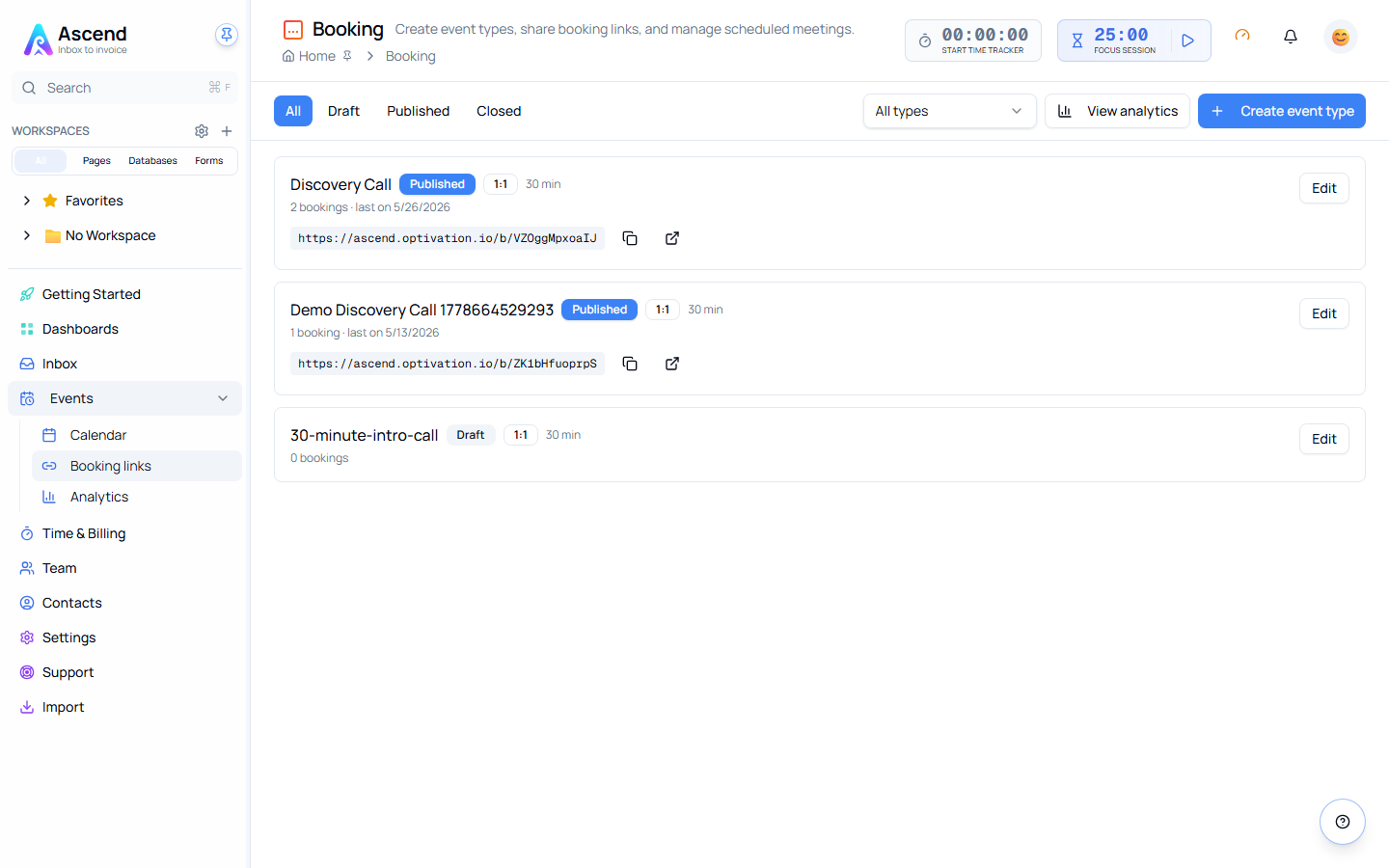
- In the sidebar, click Booking.
- Click + Create event type and pick a kind (1:1 is the default).
- Set the duration (e.g. 30 min) and an event name (e.g. "Discovery Call").
- Open the new event type and walk the tabs left-to-right:
- Overview — title, description, slug, public/private toggle.
- Schedule — duration, slot increment, buffers, minimum notice.
- Availability — weekly hours and one-off date overrides.
- Custom Questions — add the fields the booker fills in at confirm time.
- Hosts — who runs this meeting (skip for solo).
- Sharing — copy the public URL.
- Click Publish in the toolbar.
- Click View in the toolbar to open your public booking page in a new tab.
That's it. Anyone with the link can now book a time on your calendar.
Key Concepts
| Concept | What it is |
|---|---|
| Event type | A bookable "kind of meeting" (Discovery Call, 60-min Strategy, Group Workshop). Bookings hang off event types. |
| Booking | One confirmed slot on an event type. Has a start, an end, an attendee, and a status. |
| Availability rule | A weekly recurring window of bookable hours (e.g. Mon–Fri 9:00 AM – 5:00 PM). |
| Date override | A one-off change for a specific date — holidays, half-days, blocked-out periods. |
| Buffer | Gap padding before and/or after every booking, so meetings don't crash into each other. |
| Minimum notice | The shortest lead time you'll accept (e.g. "no bookings within 4 hours"). |
| Scheduling horizon | How far in the future people can book (e.g. 60 days). |
| Host | The user who runs the meeting. 1:1 has one host; collective / round-robin have many. |
| Pool | A reusable bag of hosts you can assign to many event types at once. |
| Custom question | A field on the public confirm step that captures extra info (project size, phone number, etc.). |
| Workflow | An automated email/SMS/webhook fired by booking events (created, reminder, cancelled). |
| Draft vs. published | The editor is your draft. The public URL serves the last published snapshot — edits never go live until you click Publish. |
| Public slug | An opaque code (e.g. B1AI7BXGdOQM) at /b/{slug}. Not derived from the event title — competitors can't guess it. |
Where Booking Lives in the App
| Location | What you can do |
|---|---|
/booking (Booking in the sidebar) | List of every event type on your team. Filter by status or kind. |
/booking/{id} | The event-type designer (this is where you build availability and confirm questions). |
/booking/pools | Define and manage reusable host pools. |
/booking/analytics | Per-event-type metrics: bookings, conversion, cancellations. |
/calendar | Unified workspace calendar of every booking on your team — drag to reschedule, click to inspect. |
/b/{slug} | The public booking page bookers see. Serves the published snapshot only. |
/b/cancel/{token} / /b/reschedule/{token} | Self-service links the booker gets in their confirmation email. |
How It's Different from Calendly
| Ascend Booking | Standalone scheduler | |
|---|---|---|
| Where bookings live | In your Ascend workspace next to your contacts, deals, and time entries — already linkable | A separate inbox you re-key into your CRM |
| Custom questions | Write straight into a backing database, ready to filter and view in Kanban | A standalone CSV export |
| Workflows | Built into the same workflow engine as the rest of Ascend (forms, databases, contacts) | Tool-specific recipes |
| Calendar sync | Native Google + Microsoft Graph with webhook-driven cached free/busy | Same idea, different vendor lock-in |
| Pricing | Included on every Ascend plan that fits your needs — not a separate subscription | A second SaaS bill |
| Round-robin | Pool model — assign one pool to many event types, change strategy in one place | Per-event-type host lists you keep in sync manually |
Related Features
- Databases — Where booking custom-question answers can land
- Forms — Same designer engine; reuse field types and conditional logic
- Inbox — Where booking notifications + confirmations show up
- Workflows — Trigger emails, SMS, and webhooks on booking events
- Sharing — Share-link collaboration on the event-type designer itself