
Using Forms
Forms collect data from anyone with a public link and write it straight into one of your databases. Build them with a slash-menu editor — no embeds, no Zapier, no CSV imports.
1Forms
Start here
The basics, in the order most people need them.
2Forms
Going further
The rest of what this area can do.
Content & LayoutForms aren't just stacks of inputs.Conditional LogicMake your form react to what respondents answer.Publishing & SharingEdits to a form never go live until you publish.ResponsesEvery form submission becomes a row in the form's backing database.SettingsOpen the form designer and click Settings in the top-right to configure post-submit behaviour, notifications, and…
3Forms
When something looks wrong
Known causes and how to fix them.
Inbox to invoice. Form to row.
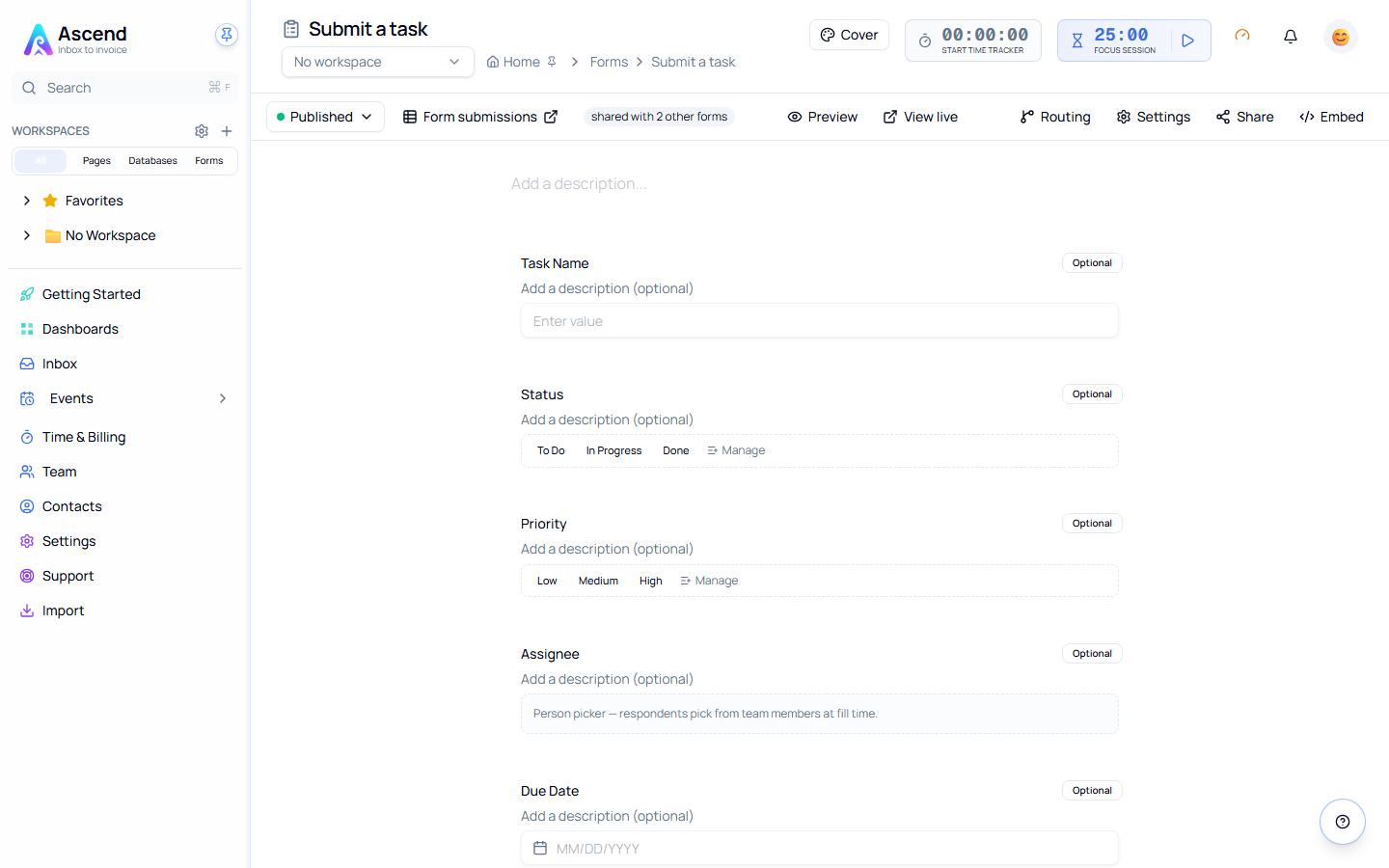
A form is just a friendly face on a database. Every submission becomes a real row you can filter, view in Kanban, link to invoices, or trigger automations from.
Quick Start
- Open any database and switch to the Forms tab — or visit any database and click + New form under the Forms section.
- Give the form a name and choose Copy all properties as fields (auto-maps your columns) or Blank form (start empty).
- Type / anywhere in the editor to add fields, headings, dividers, page breaks, or logic.
- Click Publish in the top-left.
- Click View live to grab the public URL — share it with the world.
That's it. New responses appear as rows in the backing database within seconds.
Key Concepts
| Concept | What it is |
|---|---|
| Backing database | Every form is bound to exactly one database. Fields write to that database's properties. |
| Field | A question on the form. Maps 1:1 to a database property. |
| Content block | Headings, descriptive text, and dividers — non-data UI mixed between fields. |
| Page break | Splits a long form into multiple pages with a "Next" button. |
| Conditional logic | Show, hide, require, or skip-to based on what the respondent answered. |
| Draft vs. published | The editor is your draft. The public URL serves the last published snapshot. Edits never go live until you click Publish. |
| Public slug | An opaque 8-character code (e.g. xK7mQ2nP) at /f/{slug}. Not derived from your title — competitors can't guess it. |
Where Forms Live in the App
| Location | What you can do |
|---|---|
/forms (Forms in the sidebar) | Two-pane list of every form on your team. Filter by workspace, status, activity, or search. Unread badges flag new submissions. |
| Database → Forms tab | All forms bound to this database. Smaller, no filter bar — quick way to add one to the database you're already in. |
/forms/{id} | The designer (this is where you build the form). |
/forms/{id}/preview | Owner-only preview of the current draft (including unpublished edits). |
/f/{slug} | The public URL respondents see. Serves the published snapshot only. |
How It's Different from Tally / Typeform
| Ascend Forms | Standalone form tool | |
|---|---|---|
| Where responses go | Straight into your Ascend database — already a row, ready to filter, group, automate | A separate inbox; you export CSV and re-import |
| Field schema | Driven by the database — change a property, every form bound to it sees the new options | Drift between form and your real schema is constant |
| Logic | Show / hide / require / skip-to-page — runs client-side then re-validated server-side | Same idea, but logic lives outside your data |
| Pricing | Included on every Ascend plan — not a separate subscription | A second SaaS bill |
| Collaboration | Designer is share-linkable like Pages and Databases | Tool-specific |
Related Features
- Databases — Where form responses land
- Property Types — The data types your fields write to
- Sharing — Share-link collaboration on the form designer itself
- Embedding — Drop the form into any external website via an auto-resizing iframe snippet
- Public API — Read responses programmatically