
Views, Filters & Sorting
Views let you see your database data in different ways without changing the underlying data. Each view has its own filters, sorts, grouping, and visible properties.
Key concept
The data is always the same — views only change how you see it.
View Basics
Every database starts with a Table view showing all rows. A view saves:
| Setting | What it controls |
|---|---|
| Visible properties | Which columns are shown/hidden |
| Column widths & order | Layout of the table |
| Filters | Which rows are displayed |
| Sort order | Row ordering |
| Grouping | How rows are grouped into sections |
View Types
| Type | Description | Guide |
|---|---|---|
| Table | Classic spreadsheet-style row/column grid | This page |
| Board | Kanban drag-and-drop columns grouped by a property | Kanban Board |
| Focus Board | Time-boxed planning cycles with backlog and progress tracking | Focus Board |
| Calendar | Monthly grid plotting rows by a date property | Calendar View |
| Timeline | Gantt chart with dependency arrows and drag-to-reschedule | Timeline View |
| Chart | Bar, line, or pie chart built from your rows | Chart View |
Managing Views
| Action | How |
|---|---|
| Create | Click + next to the view tabs → enter a name |
| Switch | Click any view tab |
| Rename | Right-click tab → Rename view |
| Duplicate | Right-click tab → Duplicate view |
| Delete | Right-click tab → Delete view (can't delete the last view) |
Filtering
Filters show only rows that match your criteria.
Adding a Filter
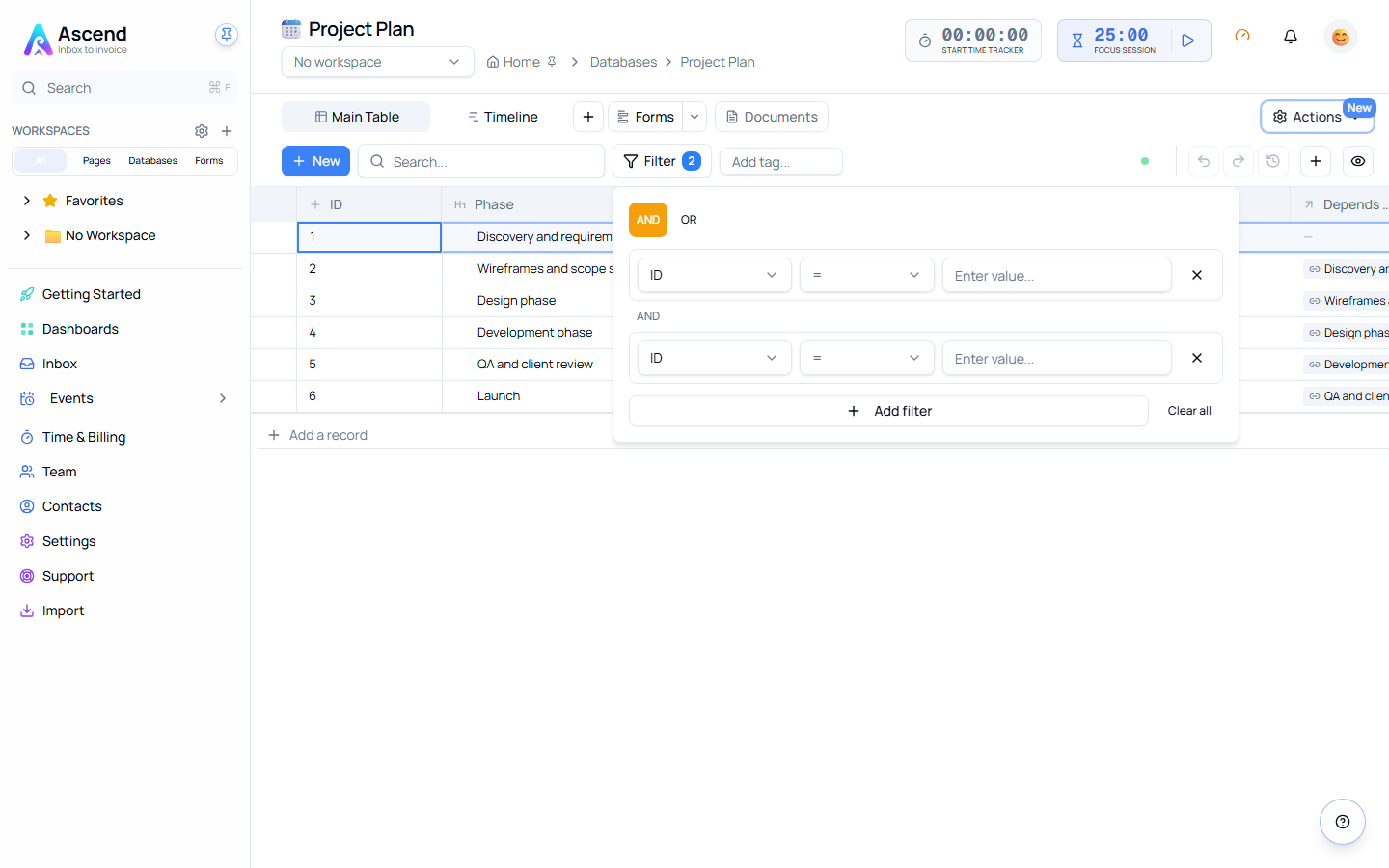
- Click Filter in the toolbar
- Select a property → choose a condition → enter a value
- The view updates immediately
Filter Conditions by Property Type
| Property type | Available conditions |
|---|---|
| Text | Contains, Does not contain, Is, Is not, Is empty, Is not empty, Starts with, Ends with |
| Number | =, ≠, >, <, ≥, ≤, Is empty, Is not empty |
| Select / Multi-select | Is, Is not, Contains, Does not contain, Is empty, Is not empty |
| Date | Is, Is before, Is after, Is on or before, Is on or after, Is within (last/next X days/weeks/months), Is empty, Is not empty |
| Checkbox | Is checked, Is not checked |
| Person | Is, Is not, Contains, Does not contain, Is empty, Is not empty |
| URL / Email / Phone | Contains, Does not contain, Is, Is not, Is empty, Is not empty |
| Files & Media | Is empty, Is not empty |
| Status / Priority / Sprint / Effort | Is, Is not, Is any of, Is none of, Is empty, Is not empty |
Relative date options: Today, Tomorrow, Yesterday, This week / month, Next week / month
Multiple Filters
| Logic | Behaviour | Example |
|---|---|---|
| AND (default) | Row must match all filters | Status = In Progress AND Assignee = Me → my in-progress tasks only |
| OR | Row must match any filter | Priority = High OR Status = Urgent → all high or urgent items |
Filter Count Badge
When filters are active, the Filter button shows a blue badge with the count. Hover for a summary — click to open the filter panel.
Sorting
Quick Sort
Click the sort icon in any column header:
| Property type | Sort options |
|---|---|
| Text, Number, Date | Ascending (A→Z, 0→9, oldest→newest), Descending, Remove sort |
| Select, Status, Priority | Option order A→Z, Option order Z→A, Alphabetical A→Z, Alphabetical Z→A, Remove sort |
A ↑ or ↓ indicator appears in the header. An active sort is shown with a checkmark in the menu.
Option order vs alphabetical
Option order sorts by the sequence you defined for the property (e.g. Not Started → In Progress → Done). Alphabetical ignores that order and sorts by name. Use option order for workflow stages.
Multi-Level Sorting
Click Sort in the toolbar → Add Sort → add properties in priority order. Drag rules up/down to change priority.
Example: Sort by Status first, then by Due Date — tasks grouped by stage, earliest due dates first within each stage.
INFO
When sorts are applied, manual row reordering is disabled.
Grouping
Grouping organises rows into collapsible sections based on a property's values.
Best properties for grouping: Select, Status, Priority, Person, Checkbox, Date (groups by month)
Creating a Group
- Via column header: Click a column header → Group by [Property]
- Via toolbar: Click Group → select a property
Removing a Group
Click Group in the toolbar → No grouping
Board View
Board view shows rows as cards organised into columns by a group-by property.
| Action | How |
|---|---|
| Move a card | Drag to a new column — the property updates automatically |
| Add a card | Click + Add at the bottom of any column |
| Open a card | Click to open the full row detail |
| Change grouping | Click Group in the toolbar → select a different property |
| Hide empty columns | Click Group → toggle Show empty columns |
| Reorder columns | Drag a column header left or right (updates the option order) |
Supported group-by types for Board: Select, Status, Multi-select, Person, Checkbox, Date
Chart View
Build bar, line, or pie charts directly from your database.
| Setting | Options |
|---|---|
| Chart Type | Bar (comparing counts), Line (trends), Pie (proportions) |
| Group By (X-axis) | Select, Status, Text, Person, Date |
| Value (Y-axis) | Count (rows per group) or Sum (total of a numeric property) |
| Property (for Sum) | Which Number property to aggregate |
Examples:
| Chart | Group By | Value | Result |
|---|---|---|---|
| Project Status | Status | Count | % of projects per status |
| Sales by Rep | Person (Sales Rep) | Sum of Contract Value | Total sales per person |
Property Visibility & Column Layout
| Action | How |
|---|---|
| Hide | Click column header → Hide property, or use the Properties panel |
| Show hidden | Click Properties in toolbar → toggle on |
| Resize | Hover right edge of a column header → drag (min 80px) |
| Reorder | Click and drag a column header left or right |
Search Within a Database
Type in the search box at the top — results filter in real time across all visible properties, combining with any active filters.
Active search indicators:
- Pulsating blue glow on the search input
- Blinking blue dot in the box corner
- X button to clear
Common View Patterns
Personal Productivity
| View | Filters | Sort |
|---|---|---|
| My Tasks | Assigned to = Me, Status ≠ Done | Due Date ↑ |
| This Week | Due Date is This week | Priority ↓ |
| High Priority | Priority = High/Urgent | Due Date ↑ |
Team Management
| View | Filters | Group |
|---|---|---|
| Team Workload | — | By Person |
| Blocked Items | Status = Blocked | — |
| Overdue | Due Date < Today, Status ≠ Done | — |
Reports
| View | Filters | Group |
|---|---|---|
| Completed This Month | Status = Done, Date within This month | — |
| Revenue by Client | — | By Client |
Best Practices
| Do | Avoid |
|---|---|
| Name views clearly (My Tasks not View 2) | Creating more than ~8 views |
| Use relative dates (This week not a specific date) | Filters so complex they're hard to read |
| Keep the default view simple and comprehensive | Duplicating views needlessly |
| Use filters to reduce cognitive load | — |
Troubleshooting
| Problem | Solution |
|---|---|
| No rows showing | Clear all filters — filters may be too restrictive |
| Can't find a property | Click Properties → toggle visibility on |
| Sort not working | Check for conflicting sorts — clear and re-apply |
| Groups collapsed after switching views | Click the group header to expand |
Related
- Property Types — Understanding what you can filter and sort by
- Working with Rows — Managing your data
- Advanced Features — Formulas in filter conditions