
Using Flows
A flow watches for something happening in your workspace — a row created, a form submitted, an invoice paid, a booking made — and then does the next few steps for you. You build it on a canvas: a trigger at the top, steps below it, and branches where the work differs.
Start here
The authoring loop, in the order you meet it.
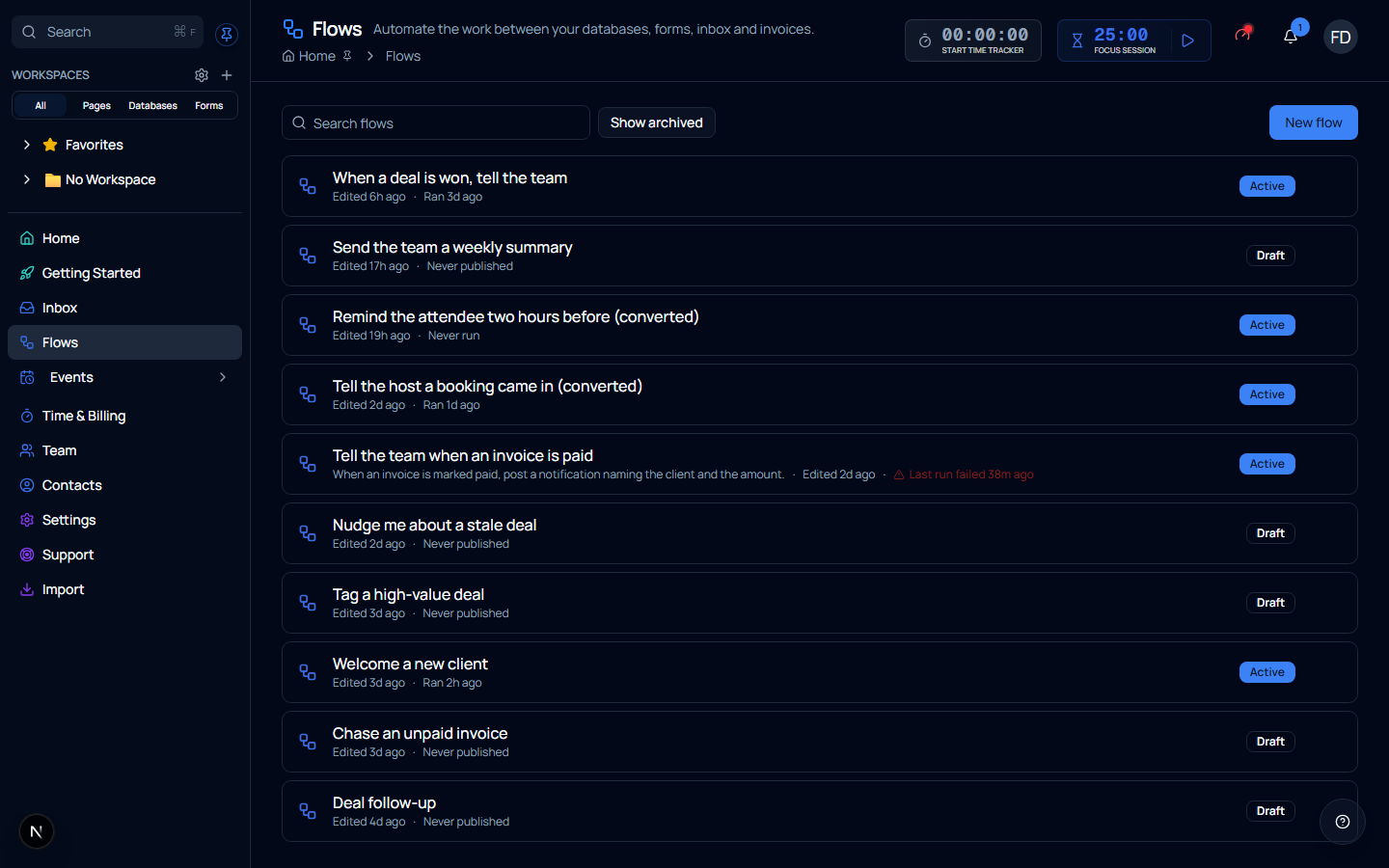
Each row says when the flow last ran — and if the last run failed, it says so in red, so a broken automation is visible from the list rather than only from inside it.
Quick Start
Your first flow
- Go to Flows and choose New flow
- Pick a template close to what you want — starting from something that already works is faster than starting from an empty canvas
- Click each step to set it up in the panel on the right
- Choose Publish when it is ready
- Come back to Runs to see what it has done
Key Concepts
| Term | What it means |
|---|---|
| Trigger | The thing that starts the flow. Every flow has exactly one |
| Step | Something the flow does, or a decision it makes, once the trigger has fired |
| Branch | Two paths out of a decision. The If step has a true and a false output |
| Draft | The version you are editing. It never runs |
| Published | The version that actually runs. Publishing takes a copy of the draft |
| Run | One execution, start to finish, recorded so you can see what happened |
A draft is not what runs
Editing a flow changes its draft. The draft saves as you work — there is no Save button — but nothing you type takes effect until you Publish.
That separation is deliberate. A published flow is pinned to the version it was published from, so a run that is part-way through a three-day delay finishes the flow its author designed, not whatever the canvas happens to say today.
Archiving stops new runs, not running ones
Archiving a flow stops it starting anything new. Runs already under way — including a step waiting on a delay — finish as designed.
What a flow can react to
| Trigger | Fires when |
|---|---|
| When something happens | A row is created or changed, a form is submitted, an invoice is paid, a booking is made, and other workspace events |
| On a schedule | At a time you choose, rather than in response to anything |
| When a webhook arrives | Another system posts to a URL Optivation gives you |
| Before or after a booking | A set number of hours either side of a booking |
What a flow can do
Steps fall into four groups:
- Actions change something — add a row, send a notification, send an email or a text, add a tag
- Logic decides — If for a yes/no branch, Switch for several, Wait for to pause until something is true, Delay to pause for a set time
- Data reshapes — build a value from other values, or map a list into the shape a later step needs
- External reaches out — call an HTTP endpoint, post to Slack, or ask AI for something
Who a flow runs as
A flow runs as the person who owns it, and its permissions are checked at the time it runs, not when it was written. A flow cannot do anything its owner could not do by hand.