
Using Pages
Pages are your workspace for notes, documents, meeting minutes, project plans, and any written content. Each page is a flexible canvas — build it up block by block.
1Pages
Start here
The basics, in the order most people need them.
2Pages
Going further
The rest of what this area can do.
Using BlocksBlocks are the fundamental content units in Optivation pages.Editing & FormattingPages support rich text formatting to make your content clear and visually appealing.Shortcuts & Slash MenuWrite faster with markdown shortcuts and the powerful slash command menu.TemplatesStart faster with pre-built page templates for common use cases.Page FeaturesPages have several features that enhance organization, visual appeal, and functionality.CollaborationWork together on pages with real-time editing, comments, mentions, and sharing.
3Pages
When something looks wrong
Known causes and how to fix them.
Quick Start
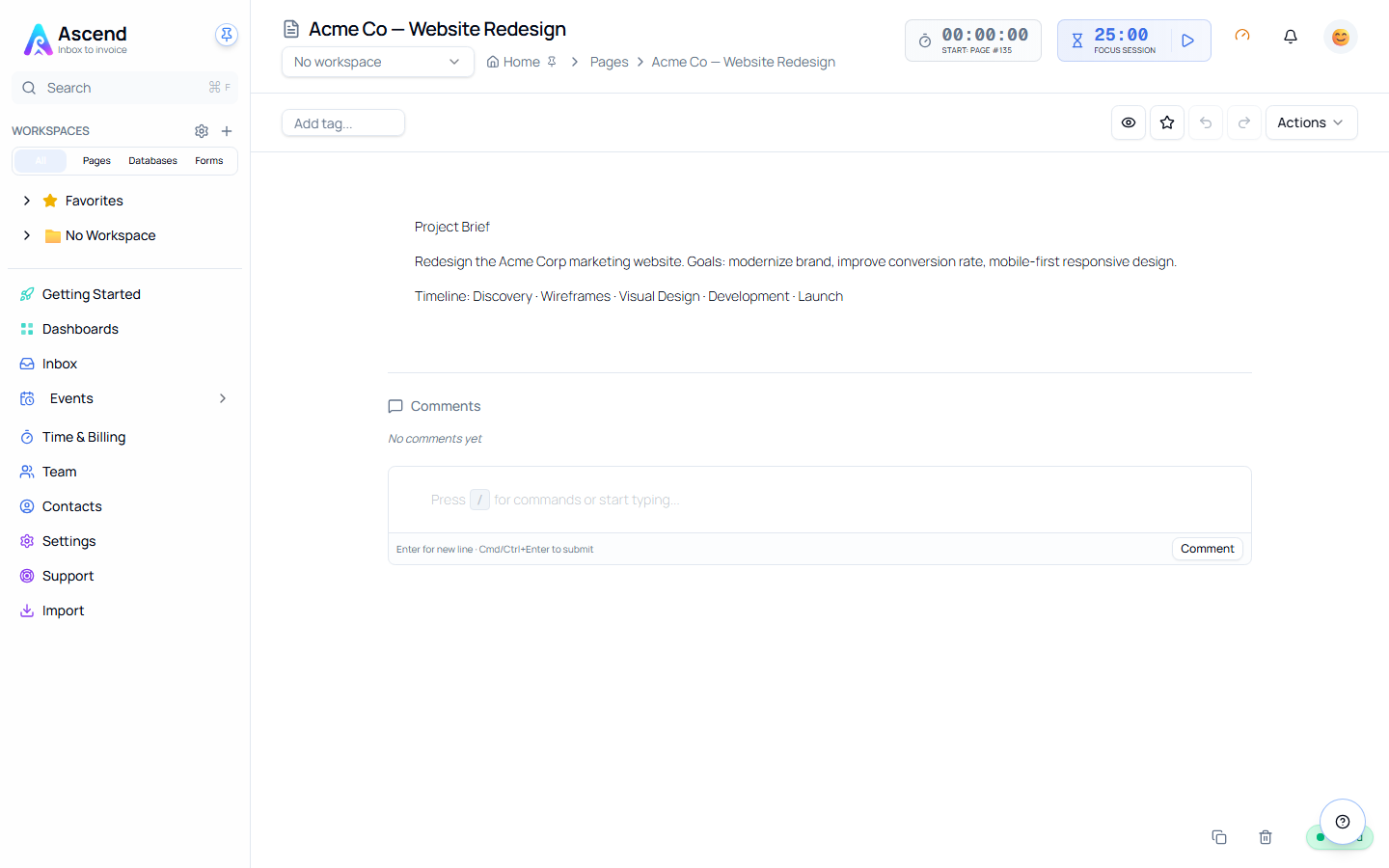
Creating your first page
- Navigate to Pages from the sidebar or dashboard
- Click New Page
- Choose a template or start blank
- Enter a title and optionally select a workspace
- Click Create Page — your page auto-saves every 2 seconds
Key Concepts
| Concept | Description |
|---|---|
| Blocks | Individual content units — paragraphs, headings, images, code, embeds, and more |
| Templates | Pre-built page structures for common use cases (meeting notes, project briefs, etc.) |
| Workspaces | Organize pages into projects, clients, or categories |
| Tags | Flexible labels for cross-workspace categorization and discovery |
| Tree Structure | Nest pages under parent pages to build hierarchical documentation |
Common Use Cases
| Use Case | Tips |
|---|---|
| Meeting Notes | Use the Meeting Notes template — add attendees, agenda, and action items with todo blocks |
| Project Documentation | Create a parent page with overview, nest sub-pages for specs, decisions, and updates |
| Knowledge Base | Organize by topic with the page tree, use templates for consistency, cross-link related pages |
| Personal Notes | Create a private workspace, use blank pages freely, organize with tags |
Getting Started Workflows
Starting from scratch
Click New Page → Blank Page → add a title → use / to insert blocks as you go.
Starting from a template
Click New Page → browse templates by category → select one → fill in the pre-built sections → delete any unused blocks.
Duplicating a page
Open any page → use the ⋯ menu → Duplicate — useful for recurring formats like weekly reviews or standup notes.
Related Features
- Workspaces — Organize pages by project or client
- Databases — Pair structured data alongside documents
- Unified Search — Find pages across all workspaces instantly
- Time Tracking — Track time spent working on pages