
Creating a flow
Start from something that works
Choosing New flow does not drop you on an empty canvas. It offers a set of starting points, because an empty canvas is the hardest possible first screen and a flow that already runs is the quickest way to learn what the parts are.
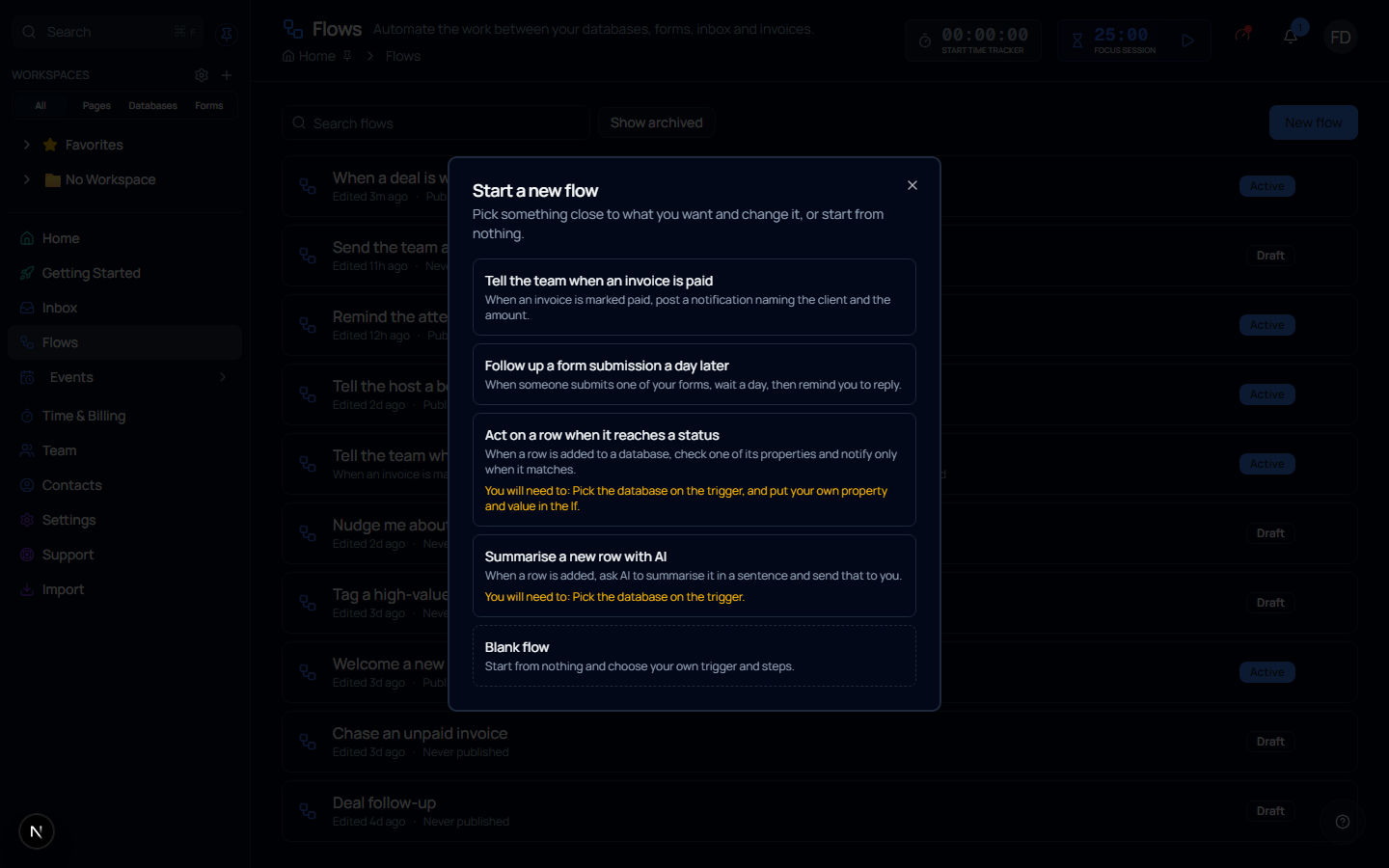
Each template says what it does and, where it matters, what you will need to set up — usually a database or a form it cannot guess. That line is there before you open it, because it is the thing that decides whether the template is the right one to start from.
If you already run automations on your bookings, the same dialog offers to convert them. Converting copies the booking workflow into a new flow as a draft; the original keeps running until you turn it off, so nothing stops working while you look at it.
The canvas
A flow reads top to bottom. The trigger sits at the top, steps hang below it, and an If step splits into a true path and a false path that can rejoin further down.
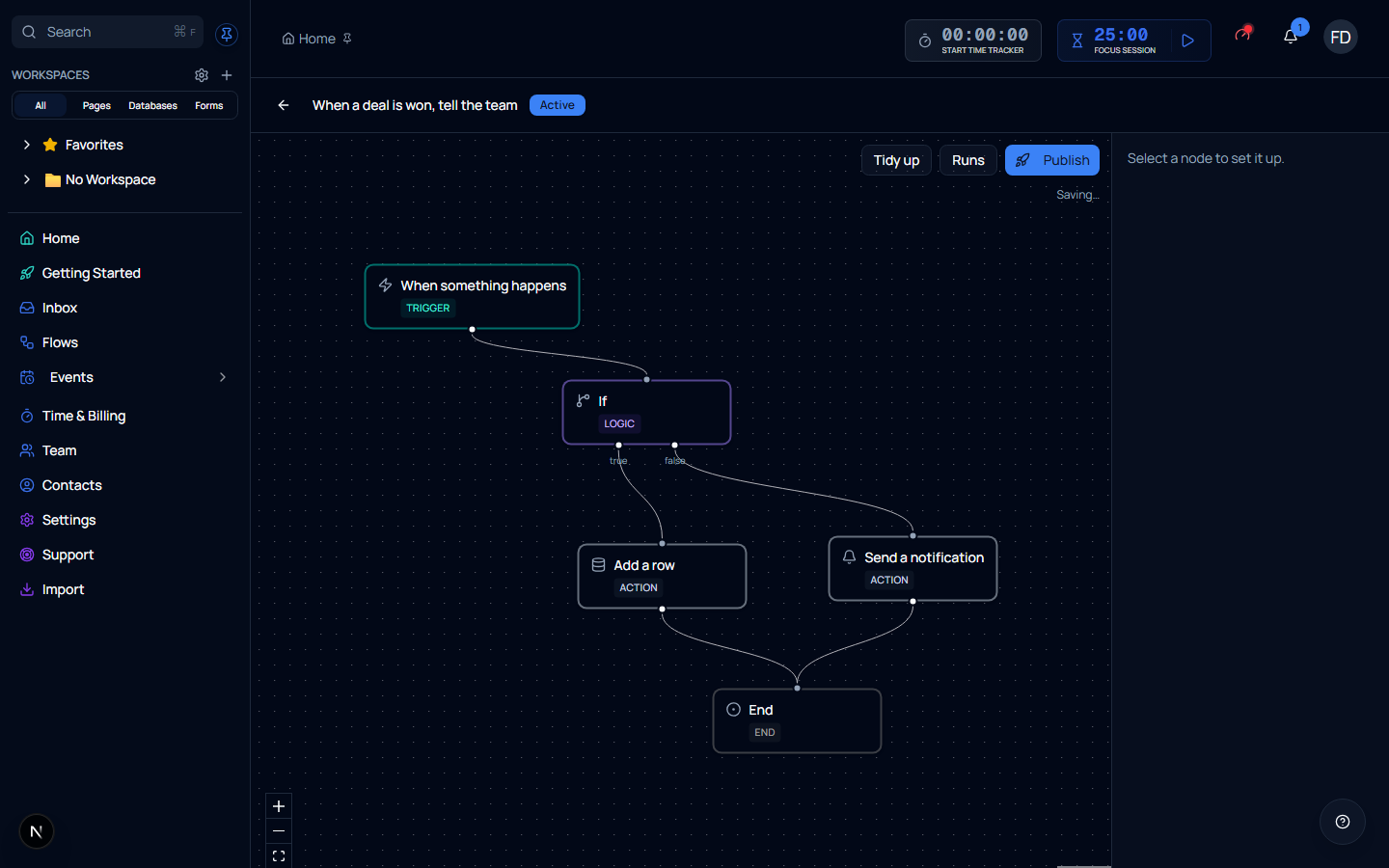
| Control | What it does |
|---|---|
| Tidy up | Lays the steps out again, top to bottom, when the canvas has got messy |
| Runs | Opens the history of what this flow has actually done |
| Publish | Makes the current draft the version that runs |
| + / − / fit | Zoom, bottom-left of the canvas |
Adding a step
Add a step from the + on the output of the step it should follow. A step added that way arrives already connected — you are choosing what happens next, rather than dropping a box on a canvas and then joining it up.
To put a step between two that are already joined, use the + on the line between them. The flow rewires around it.
Every flow ends
A flow finishes at an End step. Branches that do different work can rejoin and share one, as the two branches above do.
Saving
There is no Save button. The draft saves a moment after you stop typing, and the canvas tells you which state it is in — Saving… while it writes, Saved once it has.
Closing the tab mid-edit is safe: the pending change is flushed before the page unloads.