
Card types
Cards come from a fixed catalogue. Open a dashboard and choose Add Card to see the list, then pick a type and configure it.
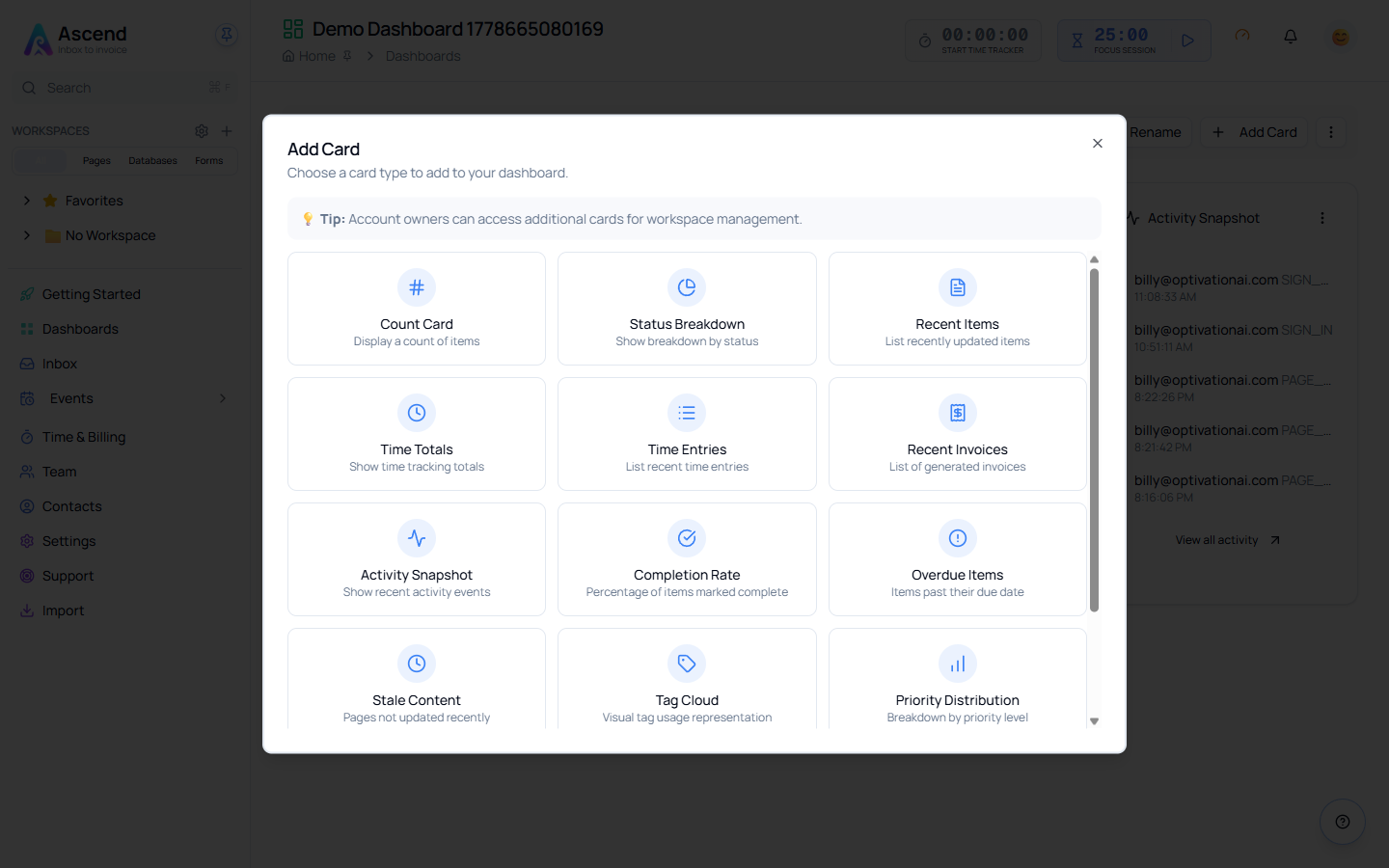
Standard cards
Available to everyone on the team.
| Card | What it shows |
|---|---|
| Count Card | A count of pages, database rows, contacts or inbox items |
| Status Breakdown | A breakdown of records by their status property |
| Recent Items | Recently updated pages, database rows or contacts |
| Time Totals | Time tracking totals |
| Time Entries | A list of recent time entries |
| Recent Invoices | A list of generated invoices |
| Activity Snapshot | Recent activity events across the workspace |
| Completion Rate | The percentage of items marked complete |
| Overdue Items | Items past their due date |
| Stale Content | Pages that have not been updated recently |
| Tag Cloud | Tag usage, sized by how often each tag is used |
| Priority Distribution | A breakdown by priority level |
Quick access cards
These are navigation and triage aids rather than metrics.
| Card | What it shows |
|---|---|
| Quick Links | Shortcuts to Billing, Integrations, Settings, Support, Security, Team and Admin |
| Inbox Summary | An inbox triage widget |
| Recently Linked | Emails and events recently linked to records |
Account owner cards
Visible to team admins and owners only. Everyone else does not see them in the catalogue.
| Card | What it shows |
|---|---|
| Token Usage | AI token balance and usage |
| Team Members | Who is in the workspace |
| Billing & Subscription | Plan and recent transactions |
| Integrations | Connected services |
| Inbox Rules | Automation rules |
| Security | Sessions and logins |
| My Support Tickets | Your open support requests |
Configuring a card
Each card carries its own settings — which database to count, which entity type to list, how many rows to show. Use the card's ⋮ → Edit to open its settings panel.
The same menu has Refresh, which re-reads that one card without waiting for the dashboard's auto-refresh, and Remove, which deletes the card from the dashboard.
Reordering
Drag a card by the handle on its left edge to move it in the grid. The order is saved for everyone who can see the dashboard.
Cards are not resized by dragging — width comes from the card type and the grid.
Related