
Markdown Shortcuts & Slash Menu
Write faster with markdown shortcuts and the powerful slash command menu.
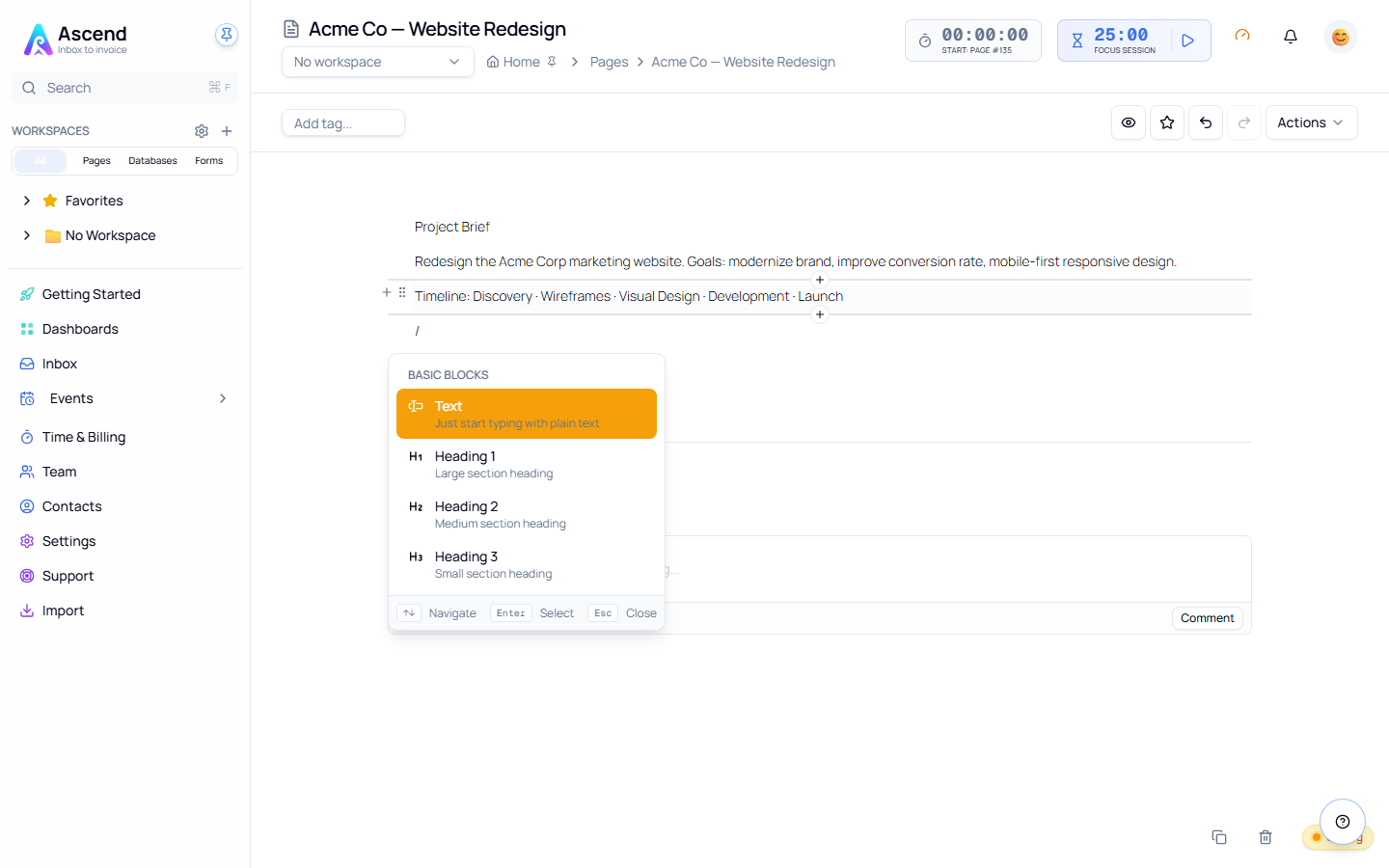
Overview
Speed up your writing with two powerful features:
⌨️ Markdown Shortcuts: Type special characters to instantly create blocks / Slash Menu: Command palette to insert any block type
Both methods are faster than clicking buttons and keep your hands on the keyboard!
Markdown Shortcuts
What Are They?
Type a pattern at the start of a line, then press Space to convert the block:
Type: # Hello        Result: Creates H1 heading
Type: - Item         Result: Creates bulleted list
Type: [] Task        Result: Creates todo checkbox
Complete Shortcuts List
| Type This | + Space | Result |
|---|---|---|
# | Space | Heading 1 (H1) |
## | Space | Heading 2 (H2) |
### | Space | Heading 3 (H3) |
- | Space | Bulleted list item |
* | Space | Bulleted list item |
1. | Space | Numbered list item |
[] | Space | Todo checkbox (unchecked) |
[x] | Space | Todo checkbox (checked) |
> | Space | Block quote |
| ``` ` `` | Space | Code block |
--- | Enter | Divider (horizontal rule) |
Step-by-Step Examples
Creating a Heading
- Start with empty block or new line
- Type:
## - Press:
Space - Type your heading text
- Result: Text becomes H2 heading
Before:  ## My Section
After:   My Section (styled as H2)
Creating a List
- Start with empty block
- Type:
- - Press:
Space - Type list item text
- Press:
Enterfor next item - Next item is automatically bulleted
Type: - First item [Space]
      - Second item [Space]
      - Third item [Space]

Result:
• First item
• Second item
• Third item
Creating a Todo
- Type:
[] - Press:
Space - Type task description
- Press:
Enterfor next task
Type: [] Buy milk [Space]
      [] Walk dog [Space]

Result:
☐ Buy milk
☐ Walk dog
Inline Formatting Shortcuts
These work anywhere in text (not just at line start):
| Type This | Result | Example |
|---|---|---|
**text** | Bold | **hello** → hello |
*text* | Italic | *hello* → hello |
__text__ | Underline | __hello__ → hello |
~~text~~ | ~~hello~~ → | |
`text` | Code | `hello` → hello |
How they work:
- Type opening marker
- Type your text
- Type closing marker
- Formatting applies automatically
The Slash Menu
What Is It?
A searchable command palette that lets you insert any block type:
Type: /
Shows: [List of all block types]
Search: h1
Shows: [Only heading options]
Select: Enter
How to Use
Basic Usage
- Open menu: Type
/in an empty block - See options: Full list of block types appears
- Select: Click or use arrows + Enter
- Block created: Ready to type content
With Search
- Type
/to open menu - Keep typing to filter:
/hshows headings - Use arrow keys to select
- Press Enter to insert
Type: /h      → Filters to h1, h2, h3
Type: /todo   → Jumps to todo checkbox
Type: /code   → Jumps to code block
Complete Command List
| Type | Description | Creates |
|---|---|---|
/paragraph | Regular text | Paragraph block |
/h1 | Large heading | Heading 1 |
/h2 | Medium heading | Heading 2 |
/h3 | Small heading | Heading 3 |
/bullet | Bulleted list | Bulleted list |
/number | Numbered list | Numbered list |
/todo | Checkbox | Todo item |
/callout | Highlighted box | Callout |
/divider | Section break | Divider |
/quote | Block quote | Quote |
/code | Code block | Code block |
/image | Upload image | Image block |
Navigation in Slash Menu
Keyboard controls:
↑/↓: Move selection up/downEnter: Insert selected blockEsc: Close menu without insertingBackspace: Clear search / close menu
Mouse:
- Hover to highlight option
- Click to insert
Choosing: Shortcuts vs Slash Menu
Use Markdown Shortcuts When:
✅ You know exactly what you want ✅ It's a common block type (heading, list, todo) ✅ You want maximum speed ✅ You're comfortable with markdown
Example workflow:
# Title [Space]
Intro paragraph
## Section [Space]
- Point one [Space]
- Point two [Space]
[] Action item [Space]
Use Slash Menu When:
✅ You're not sure of the exact block type ✅ You want to browse options ✅ It's a less common block (callout, divider) ✅ You prefer visual selection
Example workflow:
/h1 [Enter] → Title
Regular typing → Intro
/h2 [Enter] → Section
/call [Enter] → Important note
Pro Tips
Combine Both Methods
Fast writers mix both:
# Main Title              ← Shortcut
Intro text
/callout                  ← Slash menu (less common)
**Important** note        ← Inline formatting
## Next Section           ← Shortcut
- Item 1                  ← Shortcut
/image                    ← Slash menu (upload)
Learn Common Shortcuts First
Master these 5:
#→ Heading 1##→ Heading 2-→ Bulleted list[]→ Todo- ``` ` `` → Code block
Then gradually add more!
Use Search Effectively
Smart searching:
- Type first letter:
/h(headings),/c(code/callout) - Type full name:
/todo - Partial match works:
/bulfinds bullet
Common Workflows
Writing a Document
# Document Title [Space]
Overview paragraph here

## Introduction [Space]
More text

/divider [Enter]

## Main Content [Space]
- Key point 1 [Space]
- Key point 2 [Space]
- Key point 3 [Space]
Creating a Task List
# Sprint Tasks [Space]

## High Priority [Space]
[] Complete user testing [Space]
[] Fix critical bug [Space]
[] Deploy to production [Space]

## Medium Priority [Space]
[] Update documentation [Space]
[] Refactor code [Space]
Technical Documentation
# API Documentation [Space]

## Installation [Space]
``` ` [Space]
npm install my-package
Usage [Space]
/callout [Enter] Note: Requires Node.js 16+
Example [Space]
``` ` [Space]
const api = require('my-package');
```
Keyboard Shortcuts Summary
| Action | Keys |
|---|---|
| Open slash menu | / |
| Navigate menu | ↑ ↓ |
| Select from menu | Enter |
| Close menu | Esc |
| Apply markdown | Space after pattern |
| Undo conversion | Cmd/Ctrl + Z |
Troubleshooting
Shortcut not working?
Causes:
- Not at start of line (for block shortcuts)
- Didn't press Space after pattern
- Already have text before the shortcut
Solution:
- Start fresh block
- Type pattern first
- Then press Space
Slash menu not appearing?
Causes:
- Not in empty block
- Already have text in block
- Not in Edit mode
Solution:
- Press Enter to create new block
- Delete existing text first
- Switch to Edit mode
Wrong block type created?
Solution:
- Press
Cmd/Ctrl + Zto undo - Try again or use slash menu
Advanced Tips
Inline Formatting While Typing
Flow:
I need to **emphasize** this point and add `code` inline.Result: I need to emphasize this point and add code inline.
Tip: Formatting applies when you type closing marker!
Chain Shortcuts
Fast list creation:
- Item 1 [Space]
  [Enter] → Automatically creates "- "
- Item 2 [Space]
  [Enter]
- Item 3 [Space]
Convert Existing Text
- Select existing text
- Type
/to open menu - Choose block type
- Text converts to new type
Cheat Sheet
Print and keep handy:
HEADINGS          LISTS           SPECIAL
# H1              - Bullet        [] Todo
## H2             1. Number       > Quote
### H3                            ``` Code
                                  --- Divider

INLINE FORMAT
**bold**  *italic*  __underline__
~~strike~~  `code`

SLASH MENU
/ → Open menu
↑↓ → Navigate
Enter → Insert
Esc → Close
Related Guides: