
Importing files
File import takes documents and spreadsheets off your machine and turns them into pages and databases. It runs in the background, so you can leave the dialog while it works.
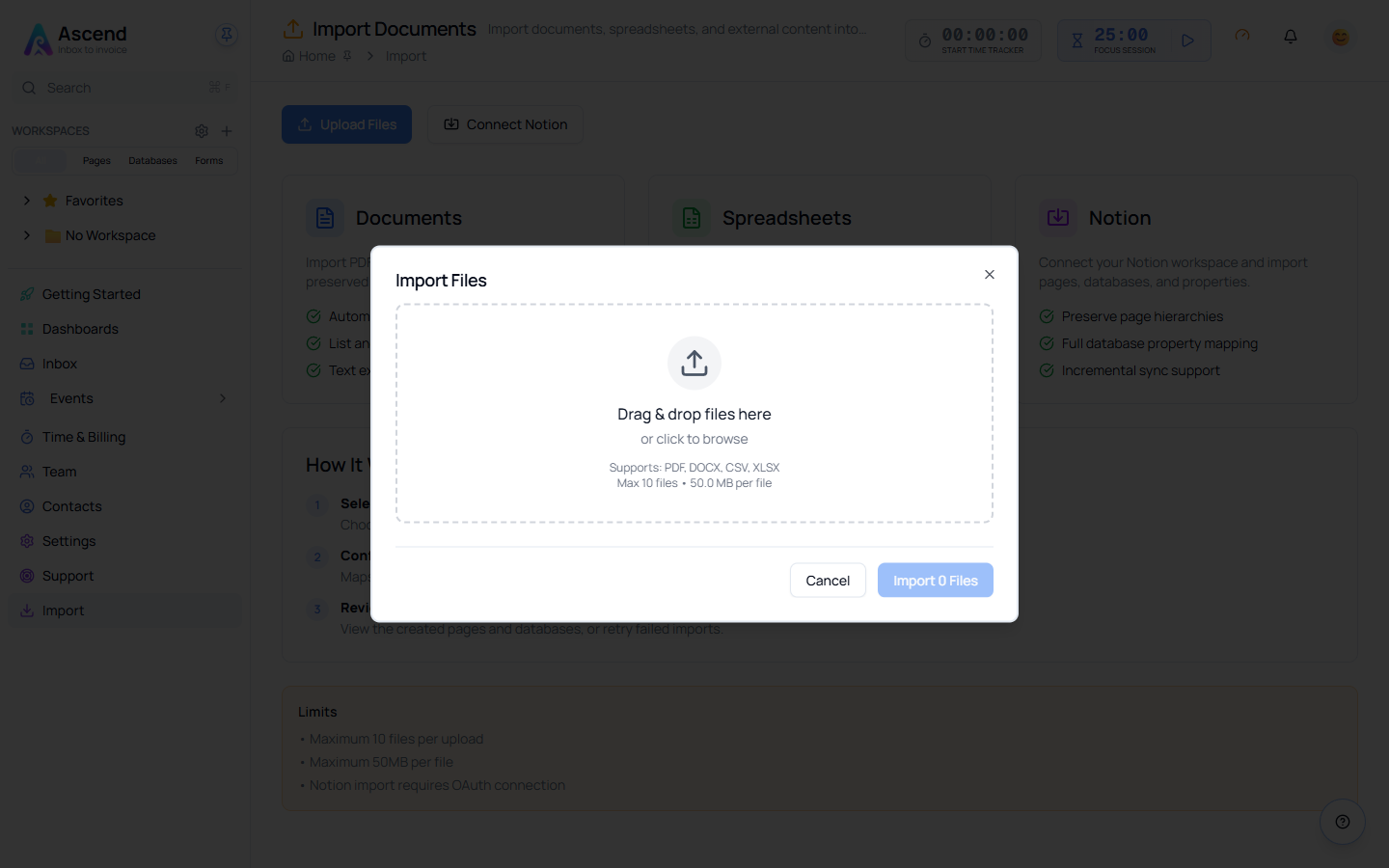
Doing it
- Go to Import and choose Upload Files
- Drag files onto the drop area, or click it to browse
- Check the list, then choose Import
- Watch the progress, or close the dialog and come back
Accepted formats
| Format | Becomes |
|---|---|
.pdf | A page |
.docx | A page |
.csv | A database |
.xlsx | A database, one per sheet |
.xls — the older Excel format — is also accepted, but converting it to .xlsx first gives more reliable results.
Limits
- 10 files per upload
- 50 MB per file
Both are per-upload limits, not daily ones. A large migration is several uploads, not a support ticket.
While it runs
The dialog shows how many files have been processed and the state of each one. Closing the dialog does not cancel the import — it keeps running, and the finished pages and databases appear in your sidebar.
When it finishes you get a summary and links to what was created. If some files failed, the summary says which.
What comes across
Documents. Headings are detected and become real heading blocks, so the page keeps its outline rather than arriving as one long paragraph. Lists and paragraphs are converted. Text is extracted from PDFs.
Spreadsheets. The header row is detected and becomes your property names. Column types are inferred from the data — dates read as dates, numbers as numbers — so you usually get a working database rather than a wall of text columns.
Check the inferred property types first
Type inference reads the column, not your intent. A column of postcodes that happen to be numeric will come in as a number property. Open the new database and fix the property types before you start adding rows to it — changing a property type later is more disruptive than changing it on day one.
When something does not import
A file is rejected before upload. It is not one of the accepted formats, or it is over 50 MB.
A PDF imports as very little text. Scanned PDFs are images of text. Optivation extracts embedded text and does not run OCR, so a scan produces an almost empty page. Run it through OCR first, or import the original document instead of the scan.
Formatting looks flattened. Import preserves structure — headings, lists, paragraphs — not visual design. Columns, text boxes and bespoke styling from a word processor do not have page equivalents.
Related