
Creating Your Card
Everything about your card is managed in one place: Settings → Your Card. This page walks through each part of the form.
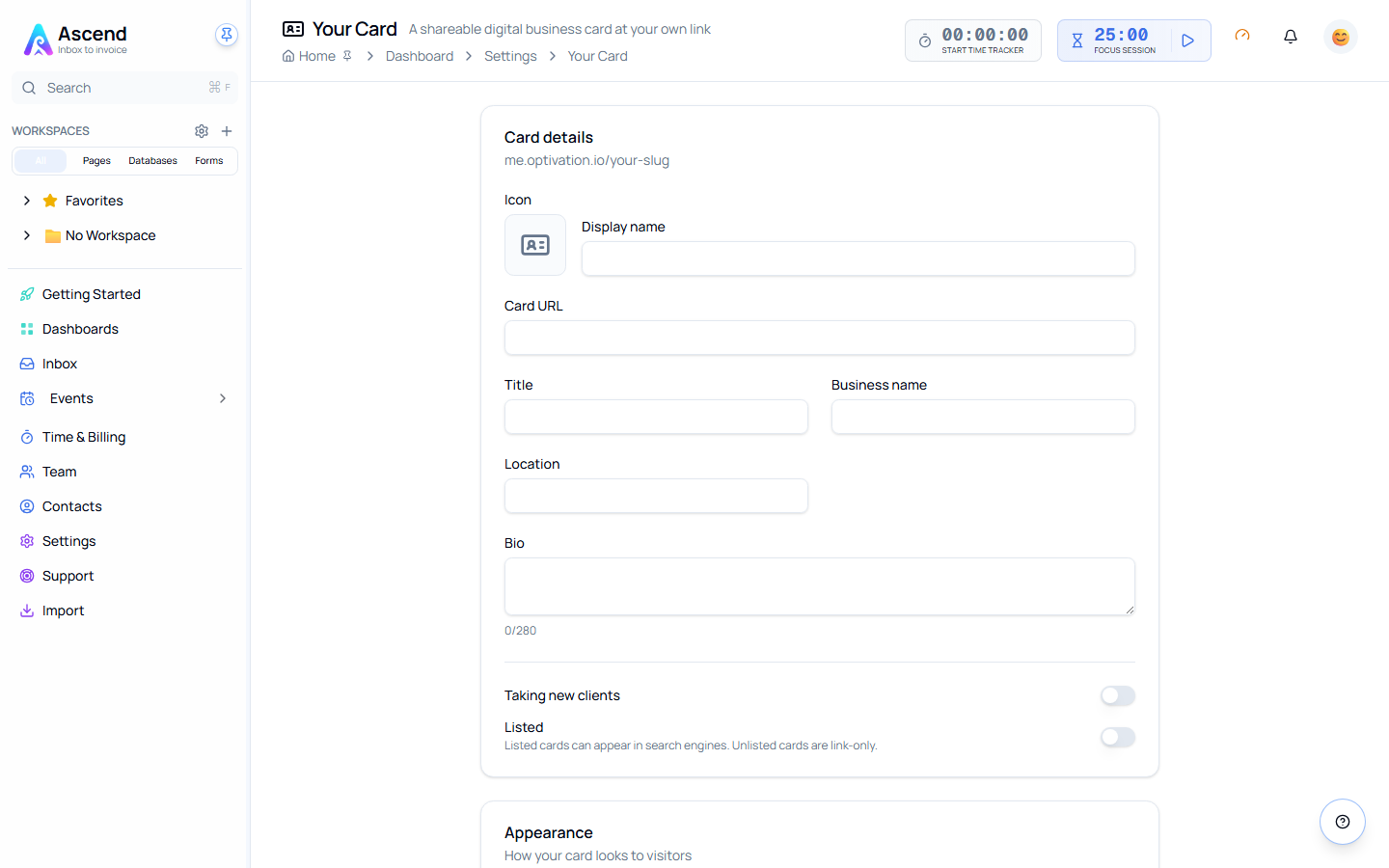
Card details
| Field | Notes |
|---|---|
| Icon | Click the icon square to open the picker — choose an emoji, an icon from the library, or upload your own image. The icon becomes the avatar on your public card. Clear it to fall back to your initials. |
| Display name | The name shown large on your card. Prefilled from your account name. |
| Card URL | Your card's address. Lowercase letters, numbers, and hyphens only — anything else is rejected. The URL must be unique across all of Optivation, and a handful of reserved words (like admin or api) aren't allowed. The panel header shows a live preview as you type. |
| Title | Your role, e.g. "Fractional CFO". |
| Business name | Your company or practice name. |
| Location | Free text — as broad or specific as you like ("Auckland, NZ"). |
| Bio | Up to 280 characters, shown under your name on the card. |
Changing your card URL breaks old links
Your slug is your address. If you change it after sharing the link or printing QR codes, the old address stops working. Pick a slug you'll keep.
Visibility settings
Two switches sit at the bottom of Card details:
- Taking new clients — when on, your card shows a "Taking new clients" badge. Turn it off when you're at capacity; the badge disappears immediately.
- Listed — when on, search engines are allowed to index your card. When off, the card is link-only: anyone with the URL can open it, but the page asks search engines not to index it. New cards start unlisted.
Appearance
Your card's look is a combination of a theme and an accent colour:
| Theme | Look |
|---|---|
| Ink | Dark, near-black card. The default. |
| Paper | Clean white card. |
| Gradient | Dark card with a wash of your accent colour. |
| Bold | The whole card in your accent colour. |
Accents: blue, violet, emerald, amber, rose, and neutral. The accent colours the avatar disc, channel icons, the "Taking new clients" badge, and the Save contact button.
The theme tiles preview each look with your current accent applied — click one, click an accent dot, and save.
Contact channels
Channels are the ways people can reach you, listed on the card with tappable links. You can add up to 8.
| Part | What it does |
|---|---|
| Type | Email, Phone, Website, LinkedIn, or Custom. Email and phone become mailto: / tel: links; the rest link to the URL you enter. |
| Label | Optional display text. If left blank, the value itself is shown. |
| Value | The address, number, or URL. |
| Visibility | Public channels appear on your card and in downloaded contacts. Hidden channels never appear anywhere a visitor can see — use them to keep a number on file without publishing it. |
Your account email is prefilled as a public Email channel when you first create the card. Remove or hide it if you'd rather not publish it.
Saving
Nothing on this page is published until you click Create card (first time) or Save changes. While you have unpublished edits:
- An Unsaved changes badge appears in the page header, and the Save button is highlighted.
- Your browser warns you if you try to close the tab.
After a successful save you'll see a confirmation toast, and All changes saved next to the button.