
Creating Templates
There are two ways to get a document template: start from a pre-built template (fastest), or upload your own Word or PDF document.
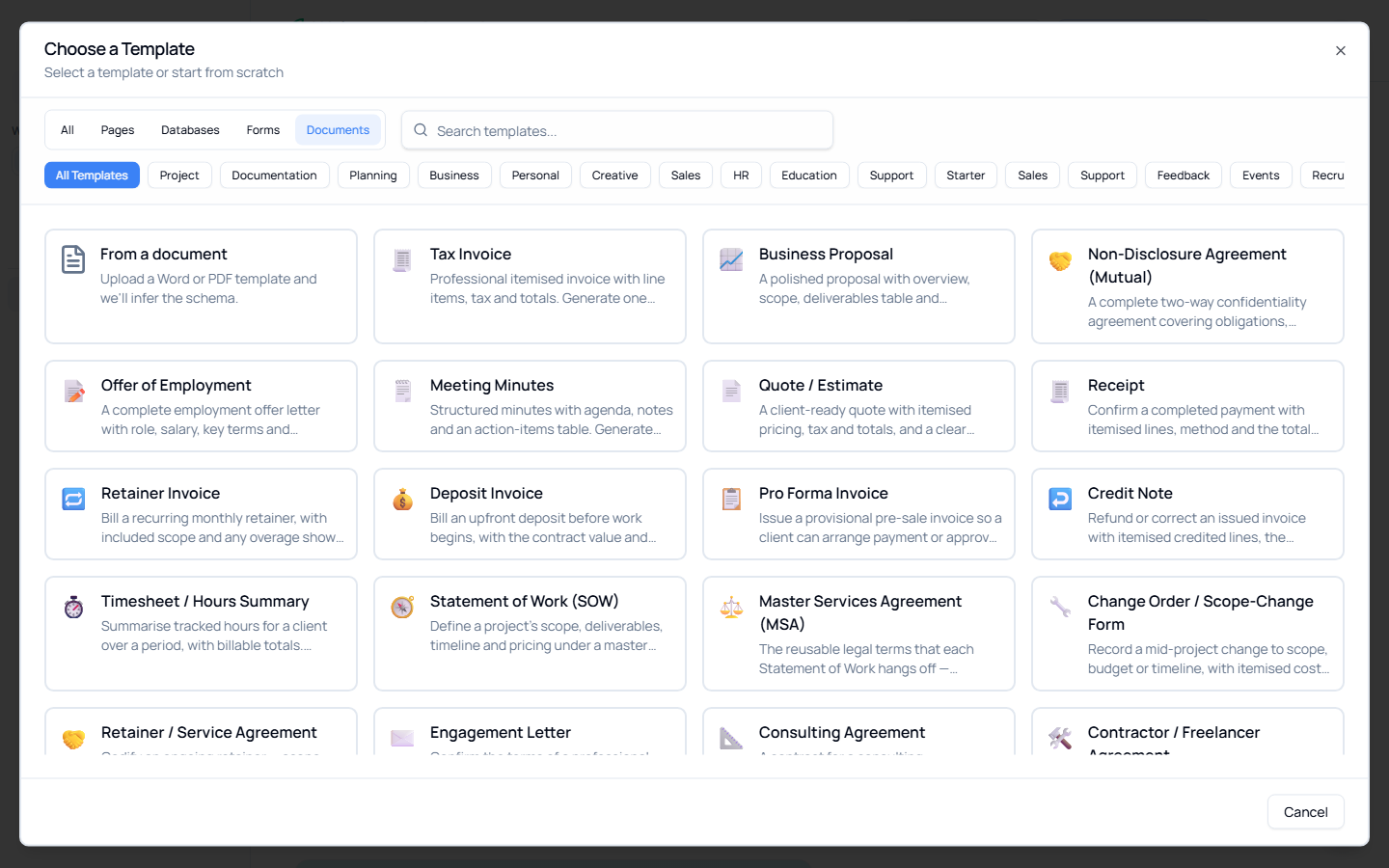
Method 1: Start From a Pre-Built Template
Optivation ships ready-made templates that set up everything for you in one click.
- Click + New (or the + next to Databases in the sidebar).
- In the create dialog, look for the Document templates (or filter to From a document).
- Pick one from the library — 50+ ready-made templates, grouped by what they do. Each is professionally laid out and pre-written, so it's usable straight away (legal and HR documents include a not legal advice note — always have a professional review them before use).
💰 Finance & billing
🧾 Tax Invoice · 📄 Quote / Estimate · 🧾 Receipt · 🔁 Retainer Invoice · 💰 Deposit Invoice · 📋 Pro Forma Invoice · ↩️ Credit Note · ⏱️ Timesheet / Hours Summary · 🧮 Project Budget / Cost Estimate · 🛒 Purchase Order · 🧾 Expense Report · 🚗 Mileage / Reimbursement Log · 📨 Recipient-Created Tax Invoice (RCTI) · 🔔 Payment Reminder Letter · ⚠️ Final Notice / Collections Letter
📈 Sales & proposals
📈 Business Proposal · 🧭 Statement of Work (SOW) · 💲 Rate Card / Pricing Guide · 🔎 Discovery / Client Brief · ✉️ Engagement Letter · 🤝 Letter of Intent (LOI) · 🔄 Renewal Proposal / Quote · 🏛️ Capabilities Statement · 🏆 Case Study · ⭐ Testimonial / Referral Request
⚖️ Legal & contracts
⚖️ Master Services Agreement (MSA) · 🤝 Non-Disclosure Agreement (Mutual) · 🔒 Non-Disclosure Agreement (One-Way) · 📐 Consulting Agreement · 🛠️ Contractor / Freelancer Agreement · 📑 Independent Contractor Agreement · 🔗 Subcontractor Agreement · 🤝 Retainer / Service Agreement · 🪪 IP Assignment / Work-for-Hire · 📜 Terms of Service · 🛡️ Data Processing Agreement (DPA) · 🚪 Cancellation / Termination Letter
👤 HR & hiring
📝 Offer of Employment · 🧾 Employment Contract · 📈 Performance Review
🗂️ Projects & delivery
🚀 Project Kickoff · 📝 Project Brief · 🎨 Creative Brief · 🔧 Change Order / Scope-Change Form · 📊 Project Status Report · 🗓️ Monthly Retainer / Client Report · ✅ Deliverables Acceptance / Sign-off · 🏁 Project Closeout Report · ⚠️ Risk Register · 🗂️ RACI / Responsibility Matrix · 📋 Meeting Agenda · 🗒️ Meeting Minutes · 😊 Client Satisfaction Report
🤝 Client operations
👋 Client Onboarding Pack · 📦 Client Offboarding / Closeout Pack
When you choose one, Optivation creates:
- a database with the right columns,
- one example row so you can generate immediately,
- a matching intake form (so others can submit data that becomes rows), and
- the Word template, already tagged and ready to generate.
You're taken to the new database. Switch to the Documents tab and click Generate to try it.
Pre-built templates are a starting point, not a cage
Everything is editable. Rename columns, add your own fields, or download the template to rework the wording and branding in Word — then keep generating.
Method 2: Upload Your Own Document
Use this when you already have a contract, letter, or invoice you want to reuse.
Attach it to an existing database
- Open the database the document should pull its values from.
- Switch to the Documents tab.
- Click Add template.
- Choose your file — Word (
.docx) or PDF, up to 50 MB. - Decide how the placeholders get mapped (see Tagging below).
- Click Upload.
Start a new database from the document
From + New → From a document, upload a Word or PDF and Optivation infers a database schema from it, then attaches the template — useful when you don't have a database yet.
The Add Dialog
When you upload, the Add document template dialog explains how templates work and lets you choose how the fields get tagged.
Mark the parts that change with a placeholder in double braces — for example {{Client Name}} or {{Total}}. When you generate a document, each placeholder is replaced with the matching field from the database. (See Placeholders & Mapping for the full syntax.)
Tagging during upload
You have two paths, and the dialog adapts to your account:
| Option | What happens | Cost |
|---|---|---|
| Let AI add the tags for me | AI reads the document and maps the fields automatically, "as well as it can." | Uses AI credits |
| Do it yourself | Type {{placeholders}} in your document; Optivation finds them so you can map them in Configure. | Free — no AI |
The AI option is only available if you have AI credits. When you're out of credits the checkbox is disabled, and you can still add {{placeholders}} yourself.
The post-upload report
After uploading, the dialog shows a short report instead of just closing:
- With AI: how many placeholders were tagged, how many fields matched, and a list of any fields it couldn't find in your document — with a suggestion to add a
{{placeholder}}for them or map them in Configure. - Without AI: how many placeholders were detected, with a prompt to open Configure and map each one.
Click Done to close.
Next
- Placeholders & Mapping — Exactly how
{{placeholders}}and field mapping work - Generating Documents — Turn a row into a finished document